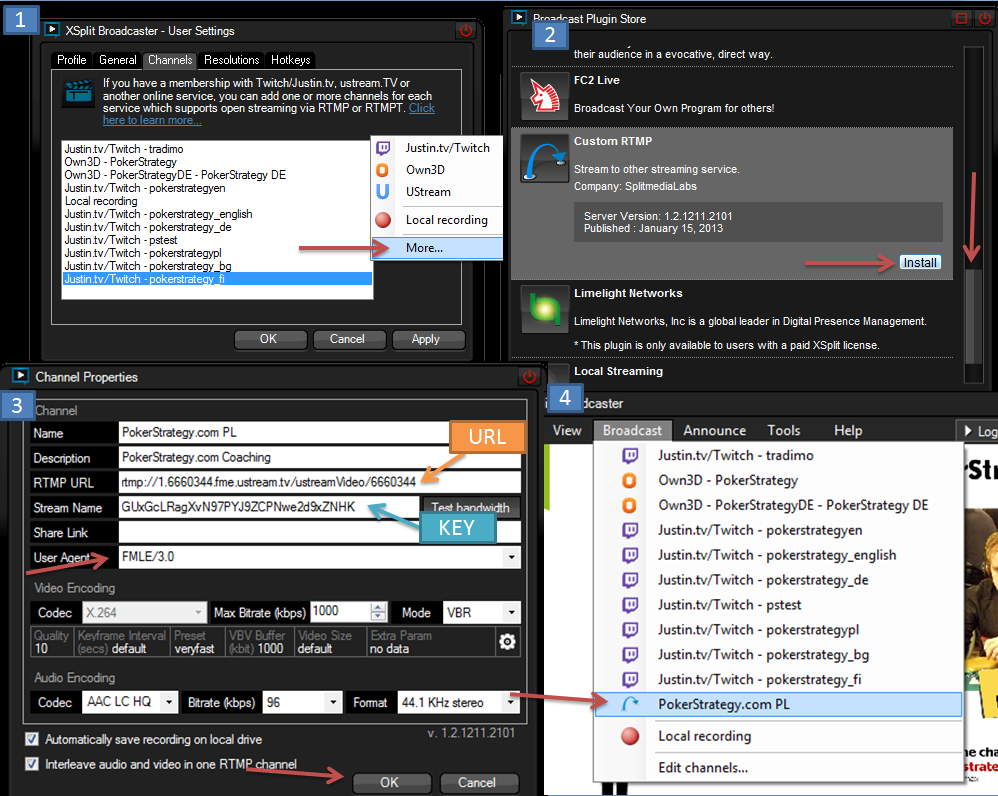
XSplit First Steps
Requirements
1. Fast computer with good graphics card
2. Fast internet connection (upload)
3. 2 Monitors highly recommended
Official System Requirements:
2.3 GHz dual core or better
2 GB RAM or higher
256 MB PCIE video card with 3D acceleration or greater
Sound card that supports 44.1 KHz
Take those requirements very,very seriously. A dedicated graphic card is recommended.
Your internet connection should have steady upload of around 1MBit/second. If unsure, test with your Poker School Contact.
You can test your connection speed here: http://www.speedtest.net/
Once the test is finished your "Upload Speed" should exceed 1Mbps.
Streaming with just one monitor is possible, but not recommended.
Installing xsplit
1. register at xsplit.com to be able to download XSplit here: https://www.xsplit.com/#registerBox
2. download software here: http://www.xsplit.com/get/
3. start the installation and confirm that your computer is allowed to install the program. You can literally just press next and the installation should work!
4. start the program: Login with your email/password
Getting the basic settings right
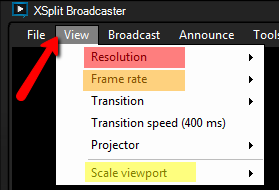
View=>Resolution: We strongly recommend 1920x1080, but sometimes 1280x720 will be enough. Streaming in a lower quality is not an option as it would be too hard to see cards, hands etc.
View=>Frame Rate: 15fps is enough and saves bandwith. In case of lower Upload Speed, you can also use 10fps.
View=>Transition: None
View=>Scale Viewports: set to a size that helps you to preview what the users will see for the monitor that you do not stream (usually 40-50% works best)
Setting up the Streaming Channel
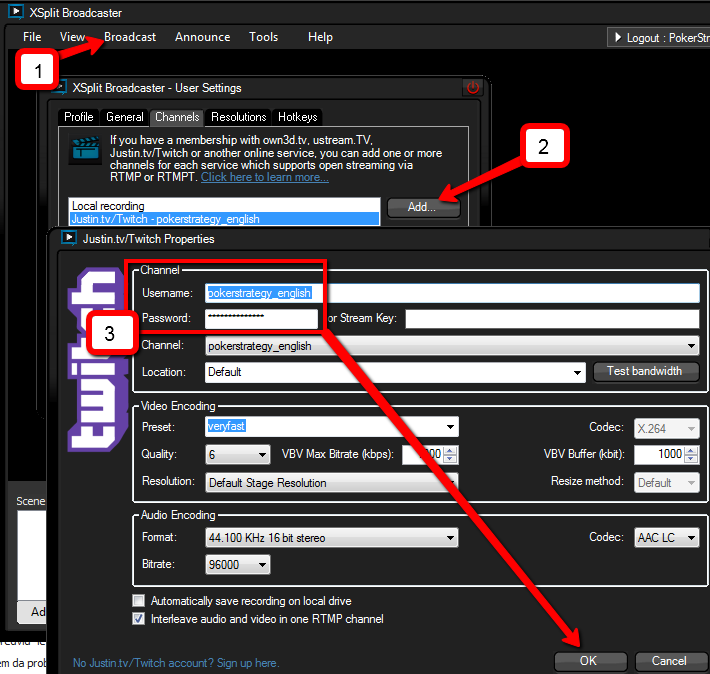
1. Go to Broadcast -> Edit Channels
2. Press Add -> Justin.tv/Twitch
3. Input the Provided Username and Streaming Key from your Poker School contact and press OK.
Setting up the Scenes
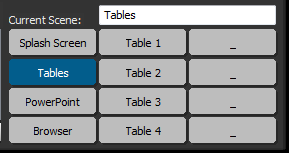
The current viewing screen setup is called a Scene. You can switch instantly between up to 12 scenes that were prepared in advance. In addition, you can add, edit, remove or toggle visibility of different input sources ( images, videos, screen region, camera, skype video) in every scene.
To facilitate this process we have created a composition of several scenes that you can use right away. You just need to download this archive, extract the xsplit directory to C:\ and load C:\xsplit\pokerstrategyto.BPres to XSplit from File -> Load Presentation.
Here's a brief explanation of How to use every scene
Splash Screen: The Scene to have on while the coaching is not active. Use this Scene before the Coaching Starts and while you are making changes to the other scenes or moving/preparing windows.
You can create your own personalized scene from the PowerPoint template that is included in the archive. Just change the text, replace the picture with your own and Save as png (current slide only).
Tables: This will be your main screen in the coaching. Within the template it only shows the background picture which we selected for you. To also add the area on your screen where hands, tables and Equilab etc are shown, follow these steps:
• Tile your tables on your screen and go to Scene Sources -> Add Screen Region.
•Select the region of your tables by dragging the red rectangle from top left to bottom right corner.
• In the Xsplit-Preview window, drag the resulting window as big as possible and center it. Make sure you do not stretch tough.
It is possible that your HUD is not shown on the streaming. If that is the case, right click on the Screen Region in the XSplit preview window and tick the option Capture Layered Windows. Example: here
Browser: Same procedure as for the tables.
Powerpoint: In this case just use the branded PowerPoint template (included in the archive) on Full Screen and select the whole screen as Scene Source.
Table 1-4: If you want to focus your action on a given table, you can add only this table and make it bigger in the XSplit Preview Window.
Single webcam: Use this screen to broadcast your webcam along with the coaching content. You can select between a template version with or without stats (both included in the archive).
Dual webcam: Use this screen to broadcast two webcams - in interviews / dual coach coachings etc.
You can also use the other screens, just make sure they have the branded background.
For dual coachings / guests you can use Skype Calls, just make sure your system audio is turned on.
You can use your webcam to show yourself (Scene Sources -> Add Camera) and your videochat partner in Skype (Scene Sources -> Add Skype Video). In those cases, please make sure that:
- The person shown looks professional and presentable
- There is nothing in the background
- You use the provided webcam overlay and personalize it
Streaming
To begin Streaming, you can select Broadcast -> Streaming Channel (the one that you just added). Do not stop the Stream during the coaching - if you have to pause, use the Splash Screen and mute your Microphone.
You are now ready to stream! You can now go to How to conduct a Beginner Coaching on a Streaming Site