
Prior to the release of PostgreSQL 9.2 the time zone was determined by the operating system's time zone and set each time the PostgreSQL server was started. As of PostgreSQL 9.2 the time zone used by the SQL Server is no longer taken from the host operating system, it is now permanently defined within the configuration file.
During the initial install of PostgreSQL 9.2 or greater the time zone used by the operating system during installation will be configured to be the default time zone within the postgresql.conf file.
This new method of defining the time zone has great benefits for the majority of PostgreSQL functions, the server is typically used within stationary computers associated with a fixed IP address. But the needs of PokerTracker 4 users are very different, poker players may use a laptop instead of a stationary computer and their IP address may frequently change.
In the event you travel between time zones, you may discover that hand histories that you have played will be imported with a time offset. This time offset will affect all reports and filters, to correct this problematic time zone problem you will have to alter the timezone operator in the postgresql.conf file to match the current time zone and then restart the PostgreSQL Server.
Alter the Time Zone in postgresql.conf
You can define the time zone used by PostgreSQL 9.2 or greater by editing the postgresql.conf file.
1. Press the 'Start' key on your keyboard and type 'notepad' to find the Notepad application.
2. Right click on the Notepad application icon and select Run as Administrator. If a UAC message is displayed, do one of the following to allow Notepad to run with Administrative permissions:
A) If you are logged on as a standard user, or if UAC is configured to always require credentials, enter the appropriate administrative credentials, and then click OK.
B) If you are logged on as an administrator and UAC is not configured to always require credentials, click Yes to start the application.
3. In Notepad open this file: C:\Program Files\PostgreSQL\9.3\data\postgreql.conf
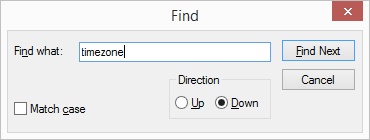
4. Click CTRL+F and type in "timezone =". Set the Direction to Down and click Find Next.
5. Alter the timezone property to match your current time zone. The list of authorized time zone properties can be found at http://en.wikipedia.org/wiki/List_of_tz_database_time_zones , under the "TZ" column. For example if you installed PostgreSQL 9.3 while in London your timezone property will appear to be : timezone = 'Europe/London'. To change the time zone to reflect the time zone for Berlin change the time zone property to timezone = 'Europe/Berlin'
timezone
6. The # sign at the start of any line within the postgreql.conf file is used to comment out the property change defined by that line. If there is a "#" as the start of the timezone line, you must delete this character.
7. Save the postgresql.conf file by selecting File > Save.
8. The PostgreSQL server must now be restarted to allow the changes made to the configuration file to take effect. The easiest way to accomplish this is by restarting your computer.