Best Poker Software in 2026: Solvers, Simulators, and HUDs
Poker software has become the go-to tool for players who want to sharpen their edge at the tables. You'll find plenty of different types, from a poker simulator to practice hands and HUDs that show your opponent real-time stats, to a poker solver to study GTO, or a tracker to review your own stats.
The right online poker software can help to transform your game, and below, we'll cover the top options you can use to find exactly where you might be losing your chips.







Best Poker Software Tools in 2026 - Reviewed
The best poker software tools serve different purposes; from a poker simulator that lets you practice tough spots, to a poker solver that breaks down GTO strategy, to a poker tracker that records every hand you play. Here are the best poker tools for 2026:
1. Best Poker Software Overall - GTO Strategy
Despite being a relative newcomer, GTO Strategy is currently our top pick for online poker software tools as it's easy to use, backed by pros, and makes learning about poker pretty fun.
Our rating: ⭐⭐⭐⭐⭐
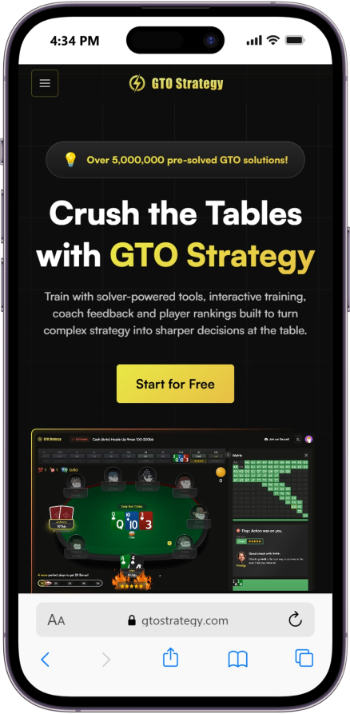
GTO Strategy is one of the easiest and most fun ways to practice poker. It's a virtual simulator which replicates a standard online poker room, which is a much more intuitive way for beginners to study than a bunch of charts.
You can compete in leaderboards and win your share of $10,000 in monthly prizes if you connect your GTO Strategy account to CoinPoker. This gamification of GTO poker goes beyond a gimmick, as the site has been backed by a string of respected poker pros such as Patrick Leonard, and the debut Cash Game World Championship winner Owen Messere, better known online as 'Pr0digy'.
Solver-powered tools, coach feedback and a full library of pre- and post-flop solutions round things off.
Why Choose GTO Strategy?
- Easy to Use: Beginner friendly tool with no set-up and an intuitive, gamified design.
- Added Prizes: Win a share of $10,000 every month when you link your account to CoinPoker.
- Pro-Approved: Backed by established pros with a trusted reputation in poker circles.
- Free Version: The basic version of GTO Strategy is completely free, focusing on flop training.
- Multiple Tools: Solver tools, interactive training and coach feedback in one place.
What Could be Improved
- Still New: GTO Strategy hasn't been around as long as some of its competitors.
- CoinPoker Required: To get the maximum value, you'll also need to open and link a CoinPoker account.
How to Use GTO Strategy
The easy setup is one of the major appeals of GTO Strategy. You just need to sign up for a free or paid membership, then start using the prebuilt configurations.
You'll run through a bunch of classic poker scenarios, and the tool looks just like a regular online poker game, with buttons to fold, call and raise. If you're using the coach feedback mode, it'll pop up on screen like a chat room.
Price of GTO Strategy
You can try GTO Strategy free, with one flop solution per day, or you can opt for one of two paid subscriptions:
| Plan | Price | Subscription length |
| Free | $0 | Ongoing |
| Premium | $39/month | Monthly |
| Elite | $79/ month | Monthly |
What You Get:
- Free plan: Limited pre-flop library, one solution per day, some AI coach feedback.
- Premium: Over 5 million flop solutions, unlimited MTT training, ChipEV and ICM formats.
- Elite: All of the above plus AI custom solves, multi-way postflop training and more.
Top Tip
Use the free version of GTO Strategy to see if you like the software. It's a risk-free way to try before you buy.
2. Best Poker Software for Studying Spots - GTO Wizard (10% Discount)
GTO Wizard is one of the most advanced software tools for poker available today, giving you real-time access to powerful solvers, hand histories, and training tools in one clean package. It's widely used by both beginners and pros because it makes studying optimal play simple and effective.
Our rating: ⭐⭐⭐⭐☆
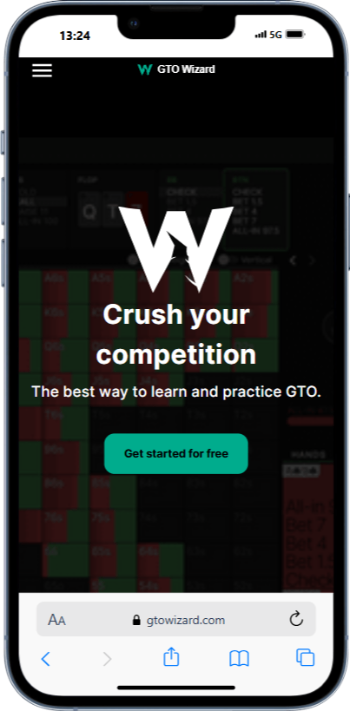
GTO Wizard stands out as the best poker tool for studying spots over and over again because it combines the power of a poker solver with the ease of a poker training software platform. With thousands of pre-solved spots, you can instantly compare your decisions to optimal play and spot leaks in your strategy. For us, the interface is designed for clarity; even if you're new to using tracking software for poker, you'll find it easy to navigate.
Another reason we recommend GTO Wizard is its versatility. You can run drills, replay hands, and study ranges with just a few clicks. The built-in features go beyond what you'd get from a standard poker simulator, helping you understand not only the "what" but also the "why" behind every decision. For anyone serious about improving, we think this is the kind of poker helper that delivers lasting results.
Why Choose GTO Wizard?
- Range Mastery: Pre-solved charts for every situation.
- Leak Finder: Pinpoints costly mistakes instantly.
- Easy Access: Works online, no downloads required.
- All Levels: Great for beginners and pros alike.
- Pro Backing: Used by elite poker players worldwide.
What Could be Improved
- Subscription Cost: Can feel pricey for casual users.
- Mobile Use: Some features are smoother on desktop.
How to Use GTO Wizard
You don't need to download anything to get started; just create an account and log in through your browser. Once inside, you can jump straight into the Study section to explore solved spots or head to the Trainer to practice common situations.
If you want to review your own play, the Hand History Analyzer lets you upload sessions or paste individual hands. GTO Wizard instantly compares your actions with solver-approved poker strategy, showing you exactly where you went wrong and how to adjust. It's one of the fastest ways to turn theory into confidence at the tables.
Price of GTO Wizard
GTO Wizard has both a free plan and paid subscriptions, depending on how deep you want to go.
| Plan | Price | Subscription length |
| Free | $0 | Ongoing |
| Starter | From $39/month | Monthly |
| Premium | From $69/ month | Monthly |
What You Get:
- Free plan: access to preflop ranges, plus limited daily postflop solutions and hand reviews.
- Starter: wider access to solvers and training tools (a good fit if you're beginning serious study).
- Premium: unlimited solutions, advanced features, and full practice modes (the closest thing to having a coach on demand.
User Review
"The trainer is definitely worth it if you spend time in it, just force yourself to play it an hour or two every day." m3dusa666 - Reddit user
Top Tip
Did you know GTO Wizard was used by several finalists in the 2023 WSOP Main Event to prepare for tough spots? It shows how crucial this tool has become for modern poker strategy.
Get 10% off when you join GTO Wizard using our link.
3. Best Poker Software for MTT Drilling - Pairrd
Pairrd has carved out a unique space in the poker training world by turning study sessions into something that actually feels like playing. Built by the team at Raise Your Edge — led by bencb, one of online poker's most decorated MTT grinders — it's designed for players who know the theory but struggle to make it stick under pressure.
Our Rating: ⭐⭐⭐⭐☆
The core of the experience is its quiz engine, which drops you into realistic tournament spots like final tables, money bubbles, and ICM-heavy decisions, then asks you to act before showing how your choices stack up against GTO ranges and bencb's own reads.
Make a mistake, and the adaptive system serves up similar hands until the concept sticks, so you're drilling your real weaknesses rather than guessing what to study. Daily and weekly leaderboards bring a competitive edge, letting you challenge friends or bencb himself for the crown. Add video breakdowns and a members' Discord, and studying won't feel like work.
Why Choose Pairrd?
- MTT Drilling: Simulates real tournament spots across all stages.
- Video Explanations: bencb walks through the reasoning on key hands.
- ICM Module: Dedicated ICM ranges covering early- and mid-game tournament spots.
- GTO Ranges Included: Preflop tournament ranges built in, with practice functions.
- Social Features: Compete with friends, share hands, and track leaderboards.
What Could Be Improved
- Course Dependency: Gets significantly more value if paired with Raise Your Edge content.
- No Postflop ICM: The ICM module doesn't yet cover postflop ICM spots.
How to Use Pairrd
Create a free account and dive straight into the quiz library with no download needed. The free plan lets you explore a limited number of spots daily, giving you a genuine feel for the format before committing.
Once inside, work through spots by category (preflop, postflop, ICM) rather than jumping around, as the skill profiling becomes more useful when you build up a consistent answer history. Use the video explanations on hands you get wrong rather than skipping past them; that's where most of the learning actually happens.
Price of Pairrd
Pairrd is a subscription-based piece of poker strategy software. It supports standard card payments and has a 14-day money-back guarantee.
| Plan | Price | Info |
|---|---|---|
| Free | $0 | Limited daily quiz access |
| Monthly | $50/month | Full access to all quiz categories and ranges |
| Annual | $497/year | Saves $100 vs monthly full access |
Top Tip
Use the ICM module specifically during the week leading up to a major tournament series. Running through ICM quiz spots in short daily sessions does more for bubble and final table decisions than passive video-watching ever will.
4. Best Poker Software for Structured Learning - PokerCoaching
PokerCoaching.com is an online poker training platform founded by professional poker player Jonathan Little. Unlike many traditional poker training sites that primarily offer video libraries, PokerCoaching is built around a structured improvement system.

Our Rating: ⭐⭐⭐⭐☆
The platform includes over 1,500 interactive quizzes that force you to make decisions. Over time, this builds pattern recognition — one of the most important skills in poker. Many competing sites offer high-quality videos but very limited structured decision-based practice. PokerCoaching builds practice directly into the curriculum.
The integration of PeakGTO is what separates PokerCoaching from most training sites at a comparable price point. PokerCoaching integrates PeakGTO directly into the training system. Instead of watching a coach talk about solver outputs, you can interact with them. For anyone serious about modern poker study, that's important as you're not just consuming theory, you're drilling solver-backed spots until they're automatic.
Why Choose PokerCoaching?
- Structured Curriculum: Guided learning paths that build skills sequentially, not randomly.
- 1,500+ Interactive Quizzes: Decision-making drills across all formats and stack depths.
- PeakGTO Integration: Solver-backed training built directly into the platform.
- Live Webinars: Monthly live coaching sessions with Jonathan Little and other coaches.
- Active Community: Forum and Discord with regular coach participation.
What Could Be Improved
- Passive Learners: Less suited to players who prefer unstructured video browsing.
- Price: The Premium tier is one of the pricier training subscriptions available.
How to Use PokerCoaching
Start with the free membership to sample the quiz format and see whether the active-learning style suits how you study. When you upgrade, follow a learning path from start to finish rather than jumping between topics. The sequential structure is intentional and builds on itself.
Attend the monthly live webinars, even if you can't watch live; the recordings are where much of the most applied coaching happens. Use PeakGTO to drill the specific spots that keep coming up in your quiz mistakes rather than studying randomly.
Price of PokerCoaching
PokerCoaching is subscription-based and accepts major debit cards and PayPal. It offers a full refund within 30 days if you are not satisfied.
| Plan | Price | Info |
|---|---|---|
| Free | $0 | Access to select introductory videos and quizzes |
| Premium (Monthly) | $147 | Full access to courses, quizzes, webinars, and classes |
| Premium (Annual) | $1,575 | Saves ~$189 vs monthly |
| Premium + PeakGTO (Annual) | ~$83/month (bundle) | Includes full platform plus integrated GTO solver |
User Review
"In my first week of studying at PokerCoaching.com, I became aware of 3–5 very impactful leaks in my game. My opening ranges were far too wide, I was firing too many barrels against calling stations..." - PokerCoaching Premium Member
Top Tip
The homework challenges are easy to skip, but shouldn't be. Working through them manually by building your own charts and posting answers in the forum is where the real retention happens.
5. Best Poker Software for Multi-Tabling - Jurojin
The team at Jurojin are specialists in multi-table software, making this a must if you regularly grind four tables or more at once.
Our Rating: ⭐⭐⭐⭐☆
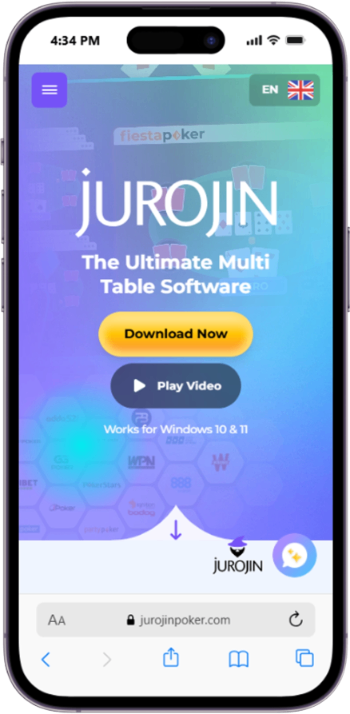
Jurojin is all about making your experience at the tables smoother. If you're multi-tabling, Jurojin helps arrange and tile your tables, adds hotkeys, activates timebanks on your behalf, and pushes any table to the front of the pack once it's your turn to act.
If you're in it for the HUD, the high level of customization will stand out. You can tweak small details like the size and even opacity of the HUD overlay, which means no two setups have to be exactly alike. It works flexibly across cash games, MTTs and Sit & Gos, and is priced very fairly for what you get.
Why Choose Jurojin?
- Perfect for Multi-Tabling: Few tools focus specifically on multi-tabling like Jurojin does, and it vastly improves the experience.
- Multiple Tools in One: Overlays, hotkeys, tiling and more sat under one bigger piece of software.
- Affordable: The cheapest subscription starts at less than $5 a month, and even the full package is pretty affordable for any multi-tabler.
- Widely Supported: You can use Jurojin at all the mainstream poker sites, and it has a specific tool for Bodog and Ignition to add features like converting chips to BBs.
- Highly Customizable: Go into your settings to edit the size of on-screen elements, the opacity of the HUD overlay, and more.
What Could Be Improved
- Windows Only: Unfortunately, Jurojin still isn't available on Mac, which is a massive blow for Mac users.
- Not as Useful for One-Tablers: If you only play one table at a time, some of the features won't be useful to you.
How to Use Jurojin
Download Jurojin for free to start using the HUD and multi-tabling tools. Like all highly customizable poker software, Jurojin has a lot of settings and can't be summed up in a couple of lines. But the good news is that it has plenty of straightforward how-to guides on the official site which makes the task of modifying your settings nice and easy.
For example, you can choose between a tiled or grid system for multi-table layouts. If you're a tournament player, you can provide bigger slots for the most important tourneys, whether that's a bigger guarantee or a later-stage event. For hotkeys, there are 16 slots for you to play with. And the HUD is in line with what you'd expect from competitors.
Price of Jurojin
Jurojin is affordable, giving you the option to only buy the specific features you need, or go for more of an all-inclusive package:
| Plan | Price | Info |
|---|---|---|
| Overlays | $12.50/month |
Table stats and live data
|
| Hotkeys | $5.83/month |
Betting shortcuts
|
| Tiling | $12.50/month |
Optimized table sizes and positioning
|
| Ignition/Bodog | $4.16/month |
Specific tool for Ignition and Bodog sites
|
| Full Access (Low Stakes) | $7.50/month |
All of the above for cash games up to NL50 and MTTs up to $22
|
| Full Access (Unlimited) | $25/month |
All of the above for all stakes
|
User Review
"YESSS, the software is amazing. It's a great tool to have during your sessions, it makes your gameplay so so smooth. " - Late_Boat_99, Reddit
Top Tip
Take some time to read through the free guides on the official Jurojin website. They're easy to follow and will help you get the most out of Jurojin, as some of the tools are more customizable than other online poker software tools.
Best Poker Software Tools Compared
Choosing the right type of software often comes down to which tool matches your goals, whether you're looking for a tracker, a hand history solver, or tools to help your tournament performance. Here's a quick comparison of our top-rated options in 2026:
| Poker Software | Main Feature | Perfect For | Cost | Discount |
|---|---|---|---|---|
| GTO Strategy | Interative training simulator | Studying spots in a fun way | $0-$79 | -% |
| GTO Wizard | Hand history solver | MTTs, all-round study | $50-$500 | 10% |
| Pairrd | MTT Drilling | MTTs | $0-$497 | - |
| PokerCoaching | Interactive learning & PeakGTO | Beginners & Serious players | $0-$1,575 | - |
| Jurojin | Multi-table setup | Playing 4+ tables at once | $0-$25 | - |
What is Poker Game Software?
Poker software is any tool you use to analyze, study, or improve your game. You can get free poker software trials or just buy poker software.
There are poker solvers like GTO Wizard that show you the mathematically optimal play for a given spot, or poker tracking software like Hand2Note or PokerTracker that records every hand you play and turns that data into stats and graphs.
There are also HUDs, which overlay those stats onto your table so you can see your opponent's tendencies in real time, or poker hand calculators that quickly work out pot odds and equity so you can check whether a call was correct. Poker simulation software lets you drill specific spots - like a short-stack push/fold situation.
Is Online Poker Software Legal?
Yes, poker game software is 100% legal to use, but how and when you can use it depends on the rules of each poker site. Solvers, poker simulators, and poker training software are all allowed for off-table study. That means you can run drills, review hands, and study ranges without any issues. In fact, many professionals openly credit these tools for their success.
The gray area includes tools that interact with live play, such as HUDs and poker-tracking software. Some poker rooms, like PokerStars, continue to allow HUDs in most cash games and tournaments. Others, like GGPoker, have banned HUDs completely to create a "level playing field." This doesn't make HUDs illegal software; it just means you need to check site rules before using them in real time.
It's also worth noting that no poker site allows real-time solvers or decision-making bots. These fall under "real-time assistance tools" and are considered cheating. Modern software providers are very clear about this: solvers like GTO Wizard are training tools only, not meant to run while you're actually playing. As long as you use software for poker only for study and analysis, you are well within the rules.
Finally, legality is different from taxation. In the United States, for example, winnings you earn from poker (whether improved by software or not) are considered taxable income by the IRS. So while the software itself is legal, you should still be mindful of your obligations when you start seeing profits.
Why Use Online Poker Software?
Online software for poker has become important because it gives you tools to study smarter and play with more confidence at the best online poker sites.
Benefits of using poker software
- A poker simulator lets you practice situations you'll face at the tables, while a poker solver helps you understand the best mathematical decisions.
- Poker trackers and other tracking software give you insight into your long-term results and opponent tendencies. Together, these tools give you an edge that simple practice alone can't provide.
- It will also improve your efficiency. Instead of spending months trying to guess where your leaks are, poker training software shows you exactly what to fix. You can review hands, drill tough spots, and even learn how different opponents approach the game.
Downsides of poker software
- Some tools and coaching guides can be quite expensive
- Not every poker room allows certain HUD features.
But considering that the global online poker industry is expected to keep growing steadily, with millions of new players entering the game every year, using the best software for poker is one of the easiest ways to stay competitive.
Types of Poker Software Tools
There isn't just one type of poker game software; different tools are built for different needs, including solvers, hand trackers, training tools, bankroll management tools, and tournament play tools. Some are designed to help you train away from the table, while others give you real-time information as you play.
Most work with Hold'em, but some specialize in Omaha poker sites. Below are the most common types of software for poker you'll come across in 2026.
Poker Solver
A poker solver literally "solves" the game, showing you the mathematically correct play for every spot. Solvers like GTO Wizard have reshaped how players think about poker by offering instant feedback on ranges, bet sizes, and post-flop decisions.
Their impact has been so big that they even sparked a WSOP Main Event controversy, with some pros debating whether solver-trained strategies were too dominant. But it's important to note that poker solvers are 100% legal when used as training tools. You can't run them during live play, but studying with one away from the table can massively speed up your learning curve.
For example, solvers reveal situations where a small bet outperforms an all-in shove, or when checking is more profitable than betting. This not only fixes mistakes but also builds confidence, since you know your choices are backed by math rather than guesswork.
Main Benefit of a Solver
A poker solver compresses months of guesswork into a session or two. You see the exact frequencies for bet, check, and raise in the spots you actually play, which turns vague "feel" into repeatable decisions. Over time, that builds muscle memory for lines that win more often.
You can also test what-if scenarios. Lock in a tendency you see in your pool (for example, opponents overfolding turns), re-solve, and the tool shows you how to adjust ranges and bet sizes to exploit it. The result is a study plan that is both balanced for tough lineups and adaptable when games get soft.
How to Use a Solver
Pick a spot, then follow a simple loop that turns theory into habits:
- Define the Hand - Set blinds, stack sizes, rake/ante, positions, and a sensible bet tree. This makes the output match your games.
- Run or Load a Solution - Open an aggregation report and note the main ideas (which hands bet small, which slow down, which mix).
- Compare Your Play - Paste a recent hand or import a batch, then mark where you deviated and why.
- Lock and Retest - Node-lock a realistic villain tendency (tight 3-bets, overfolded turns), re-run, and write one or two simple adjustments you can use next session.
Tip: Keep study blocks short (15 - 20 minutes). One spot, one takeaway, one drill: that's how solver work sticks.
Are Solvers Legal in Poker?
Yes, but only as training tools away from the table. Using a poker solver or poker training software to review hands after play is allowed; running any assistance during a hand is not. Rooms treat real-time assistance as cheating and can penalize accounts.
The safe rule is simple: study off-table, keep solver tools closed while you play, and always check your poker site's current rules page before you start. Used correctly, solvers are one of the most powerful and fully acceptable ways to improve with online poker tools.
Hand Simulator
A poker simulator lets you practice specific hands and situations without risking a cent. Whether you're a beginner who wants to get comfortable with basic hand strength, or an advanced player drilling complex tournament spots, simulators provide a safe environment to build skills.
They're perfect for rehearsing short-stack scenarios that often decide tournament survival. Imagine being on the bubble with 12 big blinds; you can load that exact spot into a poker simulator, test push/fold ranges, and repeat it until your decisions become more automatic. Cash game players also benefit by replaying tricky post-flop situations until they fully understand the best lines to take.
This ability to "rewind" and try again is what makes poker simulators such a valuable part of poker training software.
Main Benefit of a Simulator
A poker simulator gives you deliberate practice on the exact hands that cost you money. You can rehearse rare but critical spots (bubble ICM, blind-vs-blind, awkward turn cards) until the right decision becomes automatic.
Because you see EV loss and accuracy after every rep, you're not guessing what to fix. You're building muscle memory for profitable lines and retiring leaks faster than you could through normal volume.
It also removes the emotional weight from mistakes. Instead of tilting over a tough fold in real play, you can drill the same spot calmly until it feels natural. This combination of repetition and confidence-building is what makes simulators one of the most efficient study tools available.
How to Use a Simulator
- Target a Spot - Pick the format (cash or MTT), stack depth, and positions. Start with a painful hand from your database so practice mirrors reality.
- Set Constraints - Choose ranges/ICM model and a sensible bet tree. Add a time cap (e.g., 10-15 seconds) so you train decision speed, not just theory.
- Drill Reps - Run 20-50 iterations with shuffled runouts and different villain actions. Log any decision with high EV loss.
- Review and Rewrite - For each flagged mistake, write a one-line rule ("12bb BTN vs BB: prefer small c-bet on dry boards").
- Re-test the Next Day - Use spaced repetition on the same node until your accuracy climbs to over 90%, and your EV loss is lower than the threshold (for instance, something like staying under 0.5bb/100 for cash, minimal ICM loss for MTTs).
This loop turns "I think" into "I know," and it travels with you from study mode to real tables.
Are Simulators Legal in Poker?
Yes, poker simulators are designed for off-table study and are allowed. You can run drills, review ranges, and replay hands between sessions without any compliance issues.
What's never allowed is real-time assistance during play. Don't run a trainer alongside your poker client or feed it live hands for advice. Keep simulator work for study blocks, and you'll be fully within site rules.
HUD
A heads-up display (HUD) might look intimidating at first, with dozens of stats flashing on your screen, but in practice they're easy to learn and extremely useful. HUDs are a type of tracking software for poker that overlay stats like VPIP, PFR, and aggression frequency directly onto your tables.
This turns long-term tracking data into live insights. For example, a HUD might show that an opponent 3-bets only 4% of hands, telling you they're very strong when they raise. Conversely, another player folding to c-bets 75% of the time is probably a good target for continuation betting. This is a particularly handy tool when you're playing at the softest online poker sites, as it makes it easy to spot poor players.
One key detail: HUDs are legal on some sites and banned on others. PokerStars still allows them in many formats, while GGPoker bans them entirely. So, while HUDs remain one of the sharpest edges in online software for poker, you always need to check site rules first.
Main Benefit of a HUD
A HUD turns raw hand histories into live, table-side reads. Instead of guessing, you see tendencies (who opens wide, who 3-bets tight, who folds to c-bets) and can adjust during the hand.
We've also found it also reduces cognitive load. With key stats surfaced and color-coded, you make quicker, more profitable decisions and save deeper analysis for post-session review in your tracking software for poker.
How to Use a HUD
Connect hands, then verify. Install your HUD-capable tracker, point it to the poker site's hand history folder, and confirm imports live. This ensures the overlay is accurate from the start.
- Start Minimal, Stay Readable - Begin with essentials (VPIP, PFR, 3-bet, Fold-to-C-bet, Aggression). Add pop-ups for detail (by position, vs steal, vs 3-bet) so the main panel stays clean.
- Set Meaningful Thresholds - Color-code ranges you'll actually act on (for instance, Fold-to-C-bet ≥65% + auto-barrel more; 3-bet ≤4% = tighten vs 3-bets). Now every color maps to a decision, not trivia.
- Respect Sample Size - Treat early numbers as hints, not truths. Use pop-ups by position and stack depth so reads match the current spot.
- Mark Hands for Study - Use hotkeys to tag unclear spots and review them after the session. Turn common leaks into one-line rules you'll drill later (your "if X, then Y" playbook).
This workflow keeps the HUD useful mid-hand while channeling deeper questions into your off-table study loop.
Are HUDs Legal in Poker?
It depends on the poker site and format. Some operators permit third-party HUDs, others restrict or ban them and may offer built-in, first-party stats instead.
The safe approach is simple: check your room's current tools policy before playing, only use software they allow, and keep real-time assistance limited to what's explicitly permitted. Treated this way, a HUD remains a compliant, high-leverage poker helper for online poker software users.
Hand Calculator
A hand calculator is one of the simplest types of poker game software, but it can make a big difference in your results. These tools help you check pot odds, equity percentages, and whether or not you made the right decision in a given spot.
They're easy to use: plug in your cards, the board, and your opponent's likely range, and you'll see your equity instantly. For example, you might learn that a flush draw has about 35% equity against an overpair: knowledge that turns a "gut feeling" call into a clear mathematical decision.
Because of their simplicity, hand calculators are often the first poker helper beginners turn to before moving on to advanced solvers or poker training software. Even pros still use them for quick checks during study sessions, since they're fast, accurate, and keep your fundamentals sharp.
Main Benefit of a Calculator
A hand calculator turns guesswork into simple math. You can check your equity in seconds, line it up against the pot odds, and see whether calling, folding, or raising makes more sense. It also helps you spot patterns over time, so the same tricky spots stop costing you chips.
How to Use a Calculator
- Open your calculator and choose the game type (Hold'em or Omaha).
- Enter your hole cards and the current board.
- Assign a realistic range for your opponent (use position and action to guide it).
- Hit calculate to see equities, then add the pot size and the bet you're facing.
- Compare: call if your equity is equal to or greater than the pot odds. For bluffs, use the breakeven formula risk + reward (risk ÷) to see how often you need folds.
- Save the spot and write a one-line rule you can reuse next time.
This workflow makes decisions clearer in real time and gives you ready-made rules for study days.
Are Calculators Legal in Poker?
Yes, calculators are legal as off-table study tools. You can analyze hands between sessions without any issues. During play, rules are site-specific: some rooms allow basic tools, while others restrict anything that provides advice in the moment. Check your room's policy and keep calculators for study if you're unsure. Used correctly, they're a compliant poker helper that builds good habits fast.
Multi Tabling Software
If you are someone who likes to play multiple tables online all at once, this poker game software helps you to manage all your tables using tools like hotkeys, alerts and table arrangement.
We found that the best Multi Tabling poker software was Holdem Manager and PokerTracker.
Main Benefit of Multi Tabling
Multi Tabling means that you can manage several table at one all at the same time without missing out on any key moves. This makes your gameplay smoother, your decisions quicker, and can help to improve your focus, profit potential and overall productivity. All of which help to get the most out of your hands per hour.
How to Use Multi Tabling
- Arrange your Tables - Choose your table position and size, or let the software do it for you. These are typically Tile or Stack.
- Preset Bet Sizes - Choose the bet sizes that you want to access: 33%, 50%, 75% and 100%. You should then be able to with just a single click during every hand.
- Set your Hotkeys - While this is optional, it can be helpful to assign key to specific actions, like F for Fold, B for Bet.
Is Multi Tabling Legal in Poker?
Yes, it is legal to use Multi Tabling tools when playing poker online. It is used a lot by professionals just like us to help us save time and effort at the tables, increase winnings, and enhance the overall online poker experience.
Top Poker Software Discounts
To help you get started before you buy poker software, several of the tools we recommend come with discounts or offer free poker software trials so that you can try before you commit. Here's what's currently available:
| Software | Discount | How to Claim |
|---|---|---|
| GTO Wizard | 10% | Automatically applied at checkout when signing up using our link |
| Holdem Manager | 10% | Use our link to sign up |
| Hand2Note | 14-day free trial | Download via our link and trial before committing |
| Poker Tracker | 14-day free trial | Available on their site before purchase |
| Freebetrange | 14-day free trial | Available on their site before purchase |
Places You Can Use Poker Tools
Software for poker can be used in different formats, and how you apply each tool depends on whether you're grinding cash games, battling in tournaments, or reviewing hands offline. Here's how players typically get the most out of this type of software in 2026.
Cash Games
Cash games are one of the best formats for using software for poker because the same spots come up repeatedly, allowing you to build a deep database over time. A poker tracker records every hand, giving you reports on win rates by position, preflop raise frequency, showdown percentages, and much more. With enough hands logged, you can see exactly where your profits come from and which parts of your game are leaking money.
During play, a HUD built into poker-tracking software provides immediate reads on opponents. For instance, if you notice someone folding to continuation bets 70% of the time, you can exploit that weakness by c-betting wider. Off the table, a poker solver or poker training software helps you review these same spots to confirm whether your strategy was optimal. Many cash game grinders build routines around this: playing, reviewing with a tracker, then drilling the same hand in a solver until the line feels natural.
Tournaments
Poker software is particularly powerful in tournaments because blind levels change constantly and payout structures make decisions more complex. Tools like Freebetrange serve as poker simulators for preflop and ICM spots, letting you rehearse push/fold situations at different stack depths. These drills are critical when a single mistake on the bubble can erase hours of work or cost you a chance at a final table.
Tracking software for poker also shines in multi-table tournaments by showing you how your results vary across stages. You might discover you're profitable when deep-stacked but lose EV in short-stack situations; a clear sign to spend more time with a solver. Tournament players also use hand calculators offline to break down big pots, learning whether a call with a draw or a fold with top pair would have been correct. Over time, these tools build the discipline needed to survive long events and maximize ROI.
Live Poker Games
Some of the most valuable software of this type isn't used in real time at all, but during review sessions after the cards are put away. Importing your hand histories into a poker tracker lets you replay key decisions and spot recurring leaks, such as over-folding to aggression or calling too wide preflop. Since you can pause and analyze without the pressure of a ticking clock, this process often reveals patterns that would be missed mid-game.
Offline analysis is also where poker solvers and poker training software are most effective. You can test alternative bet sizes, examine solver-approved lines, and use hand calculators to confirm whether your odds support a call. Many players schedule weekly "study days" where they load hands into their software, compare results against theory, and even share findings with peers. This not only improves decision-making but also keeps you compliant with site rules, since real-time assistance is never allowed.
Expert Tips for Using Poker Software for Real Money
Getting the most out of software for this game isn't just about downloading a tool; it's about knowing how to use it. Here are some expert tips to make sure you see real results when playing for money.
- Start Simple: Don't try to master every type of software at once. Begin with a poker tracker or hand calculator, then add solvers and training software as you get more comfortable.
- Match Tools to Formats: Use a poker solver and training software to prepare for tournaments, while relying on tracking software for poker and HUDs in cash games. Each format has different demands, so your setup should reflect that.
- Review Regularly: The biggest edge comes from looking back at your play. Import hand histories into a poker tracker weekly, and use a poker solver to analyze the trickiest spots. Consistency is key.
- Combine Study Methods: Don't rely exclusively on software. Mix in watching streams, listening to pro commentary, and discussing hands with friends. This blend keeps your learning balanced.
- Focus on One Leak at a Time: Software will show you many areas to improve, but trying to fix everything at once is overwhelming. Target one weakness, fix it, then move on.
- Respect Site Rules: Some poker rooms restrict HUDs or real-time assistance tools. Always double-check what's allowed to avoid penalties and focus on off-table study if needed.
Our Verdict
If you only use one tool, make it a poker solver - and right now, GTO Wizard is the one worth your money. It covers cash games, MTTs, and Spin & Gos, and has enough depth to keep experienced players busy while being accessible enough for anyone willing to put in the time.
The free version gives you a taste, and our 10% discount makes the paid plans easier to justify.
For anyone grinding cash games or multi-tabling regularly, pair it with a tracker like Hand2Note, or if you'd rather something quicker to set up and easier to read, PokerTracker or Holdem Manager both do the job well and come with 14-day free trials.
FAQs
What is the best poker software?
Is GTO Wizard worth it?
Can AI beat poker pros?
Do online poker players use software?
What software do poker pros use?
Are AI tools allowed in poker?
How much do poker solvers cost?
What software is allowed on PokerStars?
Can a poker solver make me a winning player?