


Just try a round with play money
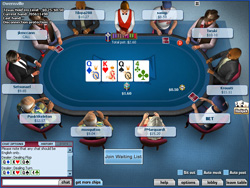 Just doing preliminary exercises are not everybody's taste. If you just want a short test run in order to check out how poker is or you want to make yourself familiar with the poker software, then go for some rounds at the play money tables.
There you can practise and test how poker feels like. Soon you'll get a feeling for the process of the betting rounds, how the software works and how it is to play this game in general.
In order to seat at a play money table, you need to do the following steps:
| 1. Create a player account with our bonus code Create a player account with on of our partner poker rooms. This registration is without any engagement and you can play as long as you want without investing your own money. Just click on one of the following links: |
| 2. Our play money articles illustrate the poker software The following articles listed below provide you with information about how each of the poker software works and how you get to the play money tables: » Playing poker at Titan Poker
|
| 3. Read our beginner articles in order to learn how you can win in poker and pass the quiz. We wish you success for our quiz. After the quiz, you can play for real money with the starting capital which you receive as a gift from us. |
Playing poker at Titan Poker
You've already caught the poker fever and can't await to start with your starting capital which you've received as a gift from PokerStrategy.com? Or maybe you don't feel confident enough yet, whether poker is the right game for you? Then it's a good opportunity to take a look at the poker software in order to play some test games with play money. It costs nothing and you can check out how the software works without ruffle or excitement.
Provided that you have already registered a player account, of course. If this is not the case, you can find a detailed tutorial here: How to create a player account at Titan Poker?

How to find a table
As soon as you registered at Titan Poker, you surely want to know at first: Where can I find a suitable table?
You can find an overview of all available tables in the lobby of the software. The tables are ordered by the variant of poker and the version of each variant. That's the virtually entrance hall. The limits and the game variants are listed on the left.

First of all, you need to inform the software that you search for a play money table. For this purpose, click with your mouse on the button "Play Money".

Now, all types of the game and limits where you can play with play money, are displayed in the list above.

For example, you would like to play at a $1/$2 No-Limit table, so you choose the according entry. Shortly thereafter you can see all tables of this limit on the right. Furthermore, you can see a third column with the label "Plrs", there it shows how many seats at each table are still available. If it says "2/6", then it means that there is a maximum of six seats at this table and two of them are currently occupied.
Now, simply search for a table with free seats and double click with your mouse on the according entry in order to open the table.

The free seats are specifically declared as "Seat open". If you want to sit down, just click on one of these empty seats.
Now all what's left, is to tell the software with how many play money chips you'd like to buy in at this table.

Just enter the amount of chips as desired or choose the "maximum allowed" directly, then click "OK" and the game begins.
How to bet or raise in a game?
There is a chance, that you need to wait one or two rounds before you are able to join the game. Beforehand, you should activate the option "autopost" in any case.

This causes that your blinds will be posted automatically which saves you some mouse clicks.
Sooner or later you've made your way into the game and then at some time, it's up to you to make a decision.

As you can see, the software shows you every possible action from which you can choose from, automatically. If you, for example, would like to fold your cards, you just have to click on the appropriate button.
You also can raise by a certain amount. In order to set the amount, you can use either the slide control or enter the amount directly into the small input field next to the slide control. After that you have to click on "Raise" and your order will be executed.
In the same manner it works with the following betting rounds. Whenever it's your turn, the software shows you every possible action from which you can choose from.
Actually, that's all. Now you know how to find a table and how to handle the software. What's left is to wish you good luck and lots of fun. And always keep in mind: If you've got a question, you can post it in the forum at every time. The team of PokerStrategy and our community are happy to help you.
Playing poker at Full Tilt Poker
You've already caught the poker fever and can't await to start with
your starting capital which you've received as a gift from
PokerStrategy.com? Or maybe you don't feel confident enough yet,
whether poker is the right game for you? Then it's a good opportunity
to take a look at the poker software in order to play some test games
with play money. It costs nothing and you can check out how the
software works without ruffle or excitement.
Provided that you have already registered a player account, of course.
If this is not the case, you can find a detailed tutorial here: How to create a player account at Full Tilt Poker?
How to find a table
As soon as you registered at Full Tilt, you surely want to know at first: Where can I find a suitable table?
You can find an overview of all available tables in the lobby of the
software. The tables are ordered by the variant of poker and the
version of each variant. That's the virtually entrance hall. The game variants are listed on the top.

First of all, you need to inform the software that you search for a
play money table. For this purpose, click with your mouse on the button
"Play Money" on the upper part of the window.

Now, all tables of the chosen game variant (here: No-Limit-Hold'em) where you can play with play money, are displayed in the main part of the window.
For example, you would like to play at a $5/$10 No-Limit table, so you
scroll through the list until you reach those tables. You can see the size of the blinds in the column "stacks". Furthermore, you can see a third column
with the label "Plrs", there it shows how many seats at each table are
still available. If it says "7/9", then it means that there is a
maximum of nine seats at this table and seven of them are currently
occupied.
Now, simply search for a table with free seats and double click with
your mouse on the according entry in order to open the table.

You will recognise the free seats by a missing avatar. For example, in the picture above, the bottom middle place is a free seat. If you want to sit down, just click on it with your mouse.
Now all what's left, is to tell the software with how many play money chips you'd like to buy in at this table.

Just enter the amount of chips as desired or choose the "maximum allowed" directly, then click "OK" and the game begins.
How to bet or raise in a game?
There is a chance, that you need to wait one or two rounds before you
are able to join the game. Beforehand, you should activate the option
"Auto-post blinds" in any case.

This causes that your blinds will be posted automatically which saves you some mouse clicks.
Sooner or later you've made your way into the game and then at some time, it's up to you to make a decision.

As you can see, the software shows you every possible action from which
you can choose from, automatically. If you, for example, would like to fold
your cards, you just have to click on the appropriate button.
You also can raise by a certain amount. In order to set the amount, you
can use either the slide control or enter the amount directly into the
input field above the slide control. After that, you have to
click on "Raise" and your order will be executed.
In the same manner it works with the following betting rounds. Whenever
it's your turn, the software shows you every possible action from which
you can choose from.
Actually, that's all. Now you know how to find a table and how to
handle the software. What's left is to wish you good luck and lots of
fun. And always keep in mind: If you've got a question, you can post it
in the forum at every time. The team of PokerStrategy and our community
are happy to help you.
Playing poker at PartyPoker
You've already caught the poker fever and can't await to start with
your starting capital which you've received as a gift from
PokerStrategy.com? Or maybe you don't feel confident enough yet,
whether poker is the right game for you? Then it's a good opportunity
to take a look at the poker software in order to play some test games
with play money. It costs nothing and you can check out how the
software works without ruffle or excitement.
Provided that you have already registered a player account, of course.
If this is not the case, you can find a detailed tutorial here: How to create a player account at PartyPoker?
How to find a table
As soon as you registered at PartyPoker, you surely want to know at first: Where can I find a suitable table?
You can find an overview of all available tables in the lobby of the
software. The tables are ordered by the variant of poker and the
version of each variant. That's the virtually entrance hall. The limits
and the game variants are listed on the left.

First of all, you need to inform the software that you search for a
play money table. These entry is listed seperately on the bottom left where you can find all the various game variants. Therefore scroll down until you find an entry called "Playmoney games".

Now, all types of the game and limits where you can play with play money, are displayed in the list beneath.

For example, you would like to play at a $0.10/$0.25 No-Limit table, so you
choose the according entry. Shortly thereafter you can see all tables
of this limit in the big window on the right. Furthermore, you can see a third column
with the label "Plr", there it shows how many seats at each table are
still available. If it says "9/10", then it means that there is a
maximum of ten seats at this table and nine of them are currently
occupied.
Now, simply search for a table with free seats and double click with
your mouse on the according entry in order to open the table.
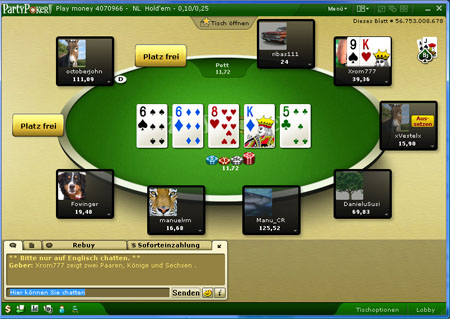
The free seats are specifically declared as "seat open". If you want to sit down, just click on one of these empty seats.
Now all what's left, is to tell the software with how many play money chips you'd like to buy in at this table.

Just enter the amount of chips as desired or choose the "maximum allowed" directly, then click "OK" and the game begins.
How to bet or raise in a game?
There is a chance, that you need to wait one or two rounds before you
are able to join the game. Sooner or later you've made your way into the game and then at some time, it's up to you to make a decision.
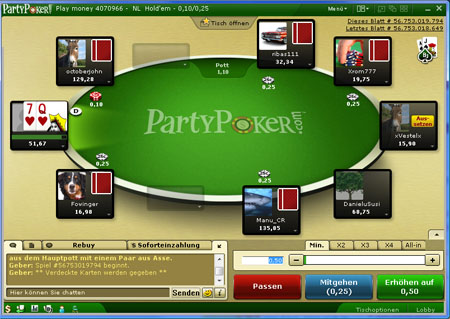
As you can see, the software shows you every possible action from which
you can choose from, automatically. If you, for example, would like to
fold your cards, you just have to click on the appropriate button.
You also can raise by a certain amount. In order to set the amount, you
can use either the slide control or enter the amount directly into the
small input field next to the slide control. After that you just have to
click on "Raise" and your order will be executed.
In the same manner it works with the following betting rounds. Whenever
it's your turn, the software shows you every possible action from which
you can choose from.
Actually, that's all. Now you know how to find a table and how to
handle the software. What's left is to wish you good luck and lots of
fun. And always keep in mind: If you've got a question, you can post it
in the forum at every time. The team of PokerStrategy and our community
are happy to help you.